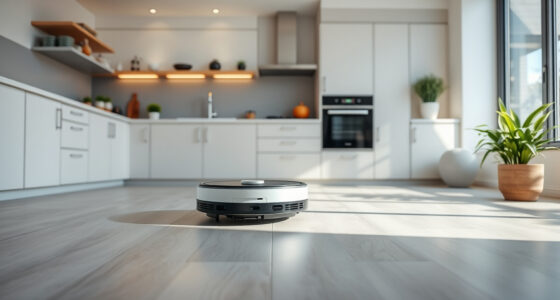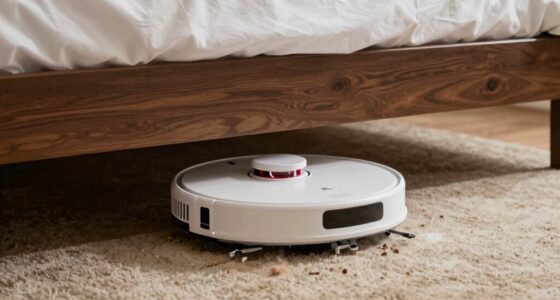
To connect your robot vacuum to Alexa for voice-controlled cleaning, start by ensuring your vacuum and Alexa device are fully charged and connected to Wi-Fi. Install the vacuum’s app and enable its skill in the Alexa app, then link your accounts. Discover the device in Alexa, assign it to a specific room or group, and test commands like “start cleaning.” If you follow these steps, you’ll be able to control your vacuum effortlessly—learn more about optimizing the setup below.
Listen free for 30 days with Audible
Thousands of audiobooks and originals — cancel anytime.
As an affiliate, we earn on qualifying purchases.
Key Takeaways
- Ensure your robot vacuum is connected to Wi-Fi and within range of your router for stable communication.
- Download and set up the vacuum’s app, then enable its Alexa skill in the Alexa app’s Skills & Games section.
- Log into your vacuum’s account during skill activation, and link it to Alexa for voice control integration.
- Use the “Discover Devices” feature in Alexa to find and add the vacuum to your smart home setup.
- Assign the vacuum to a specific room or group in Alexa for targeted voice commands like “start cleaning the kitchen.”
robot vacuum compatible with Alexa
As an affiliate, we earn on qualifying purchases.
As an affiliate, we earn on qualifying purchases.
Preparing Your Robot Vacuum and Alexa Devices
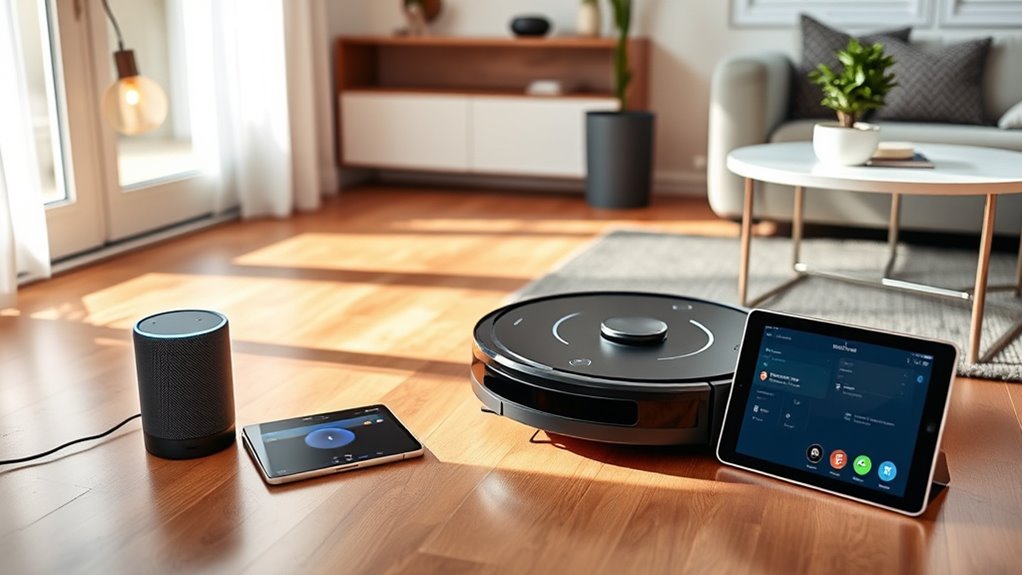
Before you can control your robot vacuum with Alexa, you need to prepare both devices properly. Start by checking your vacuum’s maintenance tips, like cleaning brushes and emptying the bin, to ensure maximum performance. Keeping the battery life in mind, make sure your vacuum is fully charged before connecting it to Alexa. This prevents interruptions during initial setup and future use. Confirm that your robot vacuum’s firmware is up to date, as updates often improve compatibility and efficiency. On your Alexa device, ensure it’s connected to Wi-Fi and functioning smoothly. Properly maintaining your devices not only extends their lifespan but also guarantees seamless voice control. Taking these steps now makes the integration process smoother and more reliable.
As an affiliate, we earn on qualifying purchases.
Installing the Necessary Apps and Skills
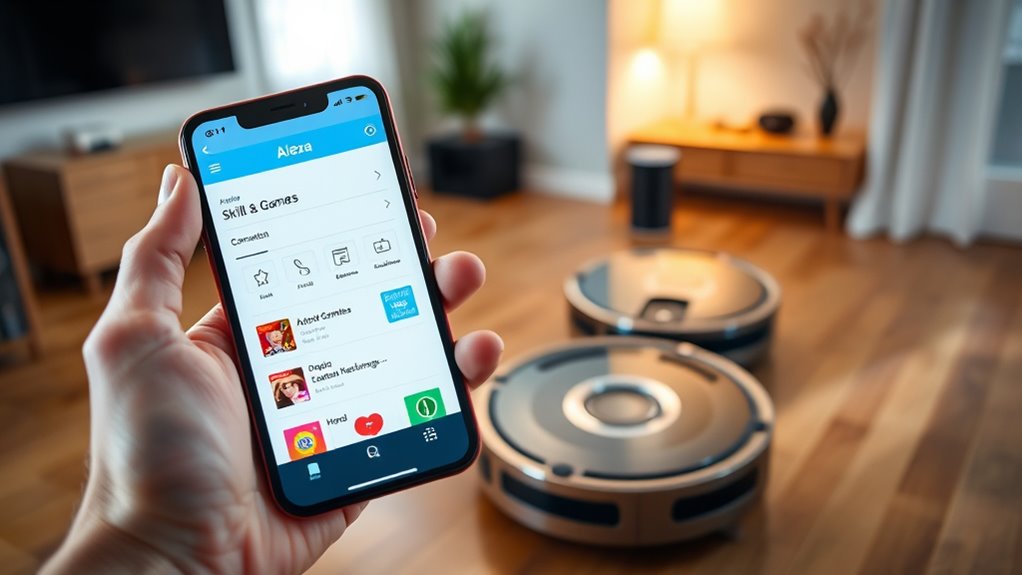
To get started, download the robot vacuum’s app on your device and follow the setup instructions. Next, enable the appropriate Alexa skill in the app to connect your devices. Finally, make sure your accounts are linked correctly so your voice commands work seamlessly.
Download Robot App
Getting your voice-controlled cleaning robot ready starts with downloading the right app. The robot app is essential for device setup, allowing you to connect and control your vacuum seamlessly. First, locate the app compatible with your robot brand in your device’s app store. Once downloaded, open the app and follow the instructions for setup. Keep in mind that each robot may have unique features, so reading the instructions carefully helps avoid confusion.
| Step | Action | Purpose |
|---|---|---|
| Find the app | Search for your robot’s app | Compatibility and control |
| Download | Install on your smartphone or tablet | Device setup |
| Open & setup | Launch app and follow prompts | Connecting your robot |
Enable Alexa Skill
Have you already downloaded the robot app? To enable Alexa voice recognition for your smart home integration, you need to install the appropriate Alexa skill. Head to the Alexa app on your smartphone, then search for your robot vacuum’s skill in the skills marketplace. Once you find it, tap “Enable,” and follow the prompts to log into your robot account. This step activates the voice control feature, allowing Alexa to recognize commands and communicate with your robot vacuum. Ensuring the skill is properly enabled is essential for seamless voice commands and smart home integration. After activation, you’re ready to move on to linking your accounts, so Alexa can control your cleaning device effortlessly.
Link Accounts Properly
Wondering how to guarantee your smart home devices work together smoothly? Start by properly linking your accounts. First, download the necessary app for your robot vacuum and ensure your Alexa app is updated. Next, follow the prompts to connect your robot account, paying close attention to privacy settings to protect your data. When linking accounts, keep these tips in mind:
- Use strong, unique passwords for each account to enhance account security.
- Enable two-factor authentication if available.
- Review privacy settings to control data sharing.
- Confirm that your device permissions are correctly set to avoid security vulnerabilities.
As an affiliate, we earn on qualifying purchases.
Linking Your Robot Vacuum to the Alexa App
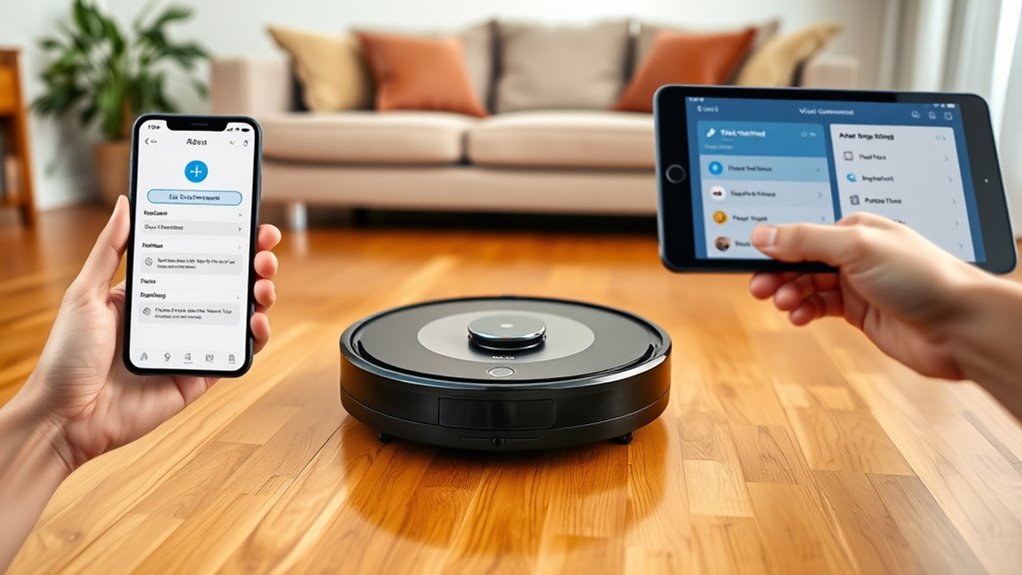
Connecting your robot vacuum to the Alexa app requires ensuring your device is compatible and properly set up. Once that’s done, you can easily link it through the app and start controlling your cleaner with your voice. If you encounter issues, troubleshooting connection problems is straightforward with some quick checks.
Compatible Device Setup
Setting up your robot vacuum to work with the Alexa app is straightforward. First, verify your device is compatible—check the manufacturer’s list or packaging. Next, confirm your robot vacuum’s software is up to date, as updates often improve device compatibility and functionality. Then, follow these steps:
- Connect your robot vacuum to your Wi-Fi network.
- Enable the manufacturer’s skill in the Alexa app.
- Log into your account if prompted.
- Discover devices within the Alexa app.
Making sure your device is compatible and running the latest software updates guarantees a smooth setup process. These steps help prevent connection issues and ensure your robot vacuum responds reliably to voice commands.
Using the Alexa App
Once you’ve confirmed your robot vacuum is compatible and updated, the next step is linking it to the Alexa app. Open the app and navigate to the “Skills & Games” section. Search for your vacuum’s brand and enable its skill. Follow the prompts to log in to your account and authorize access. Once linked, assign your device to a specific room for easier voice command etiquette. This setup not only simplifies vacuum maintenance but also guarantees your commands are precise. Make sure your voice commands are clear and concise to avoid confusion. After linking, you can control your robot vacuum with simple voice prompts like “Alexa, start cleaning.” Properly using the Alexa app streamlines your cleaning routine and helps you maintain a tidy space effortlessly.
Troubleshooting Connection
If your robot vacuum isn’t responding to Alexa commands, there’s a good chance the connection needs troubleshooting. First, check for Wi Fi interference—other devices or signals can disrupt the connection. Next, verify that the app has the necessary permissions on your device to control your vacuum. To resolve issues:
- Restart your Wi Fi router and reconnect your vacuum and Alexa device.
- Ensure your robot vacuum is within range of your Wi Fi network.
- Update both the Alexa app and your vacuum’s firmware.
- Double-check app permissions to confirm Alexa has access to control your device.
Addressing these points can often fix connection issues, ensuring smooth voice commands. If problems persist, re-link your device in the Alexa app or reset your vacuum’s network settings.
As an affiliate, we earn on qualifying purchases.
Assigning the Robot Vacuum to a Room or Group
Have you ever wondered how to efficiently direct your robot vacuum to clean specific areas? Assigning your vacuum to a room or group makes this easy. Start by creating room assignments through your app, where you can designate zones and manage groups. This helps with targeted cleaning and better organization. Use the table below to understand common group management options:
| Group Name | Description |
|---|---|
| Living Areas | Main living room, dining room |
| Bedrooms | All bedrooms |
| Kitchen | Kitchen and pantry |
| Entire Home | All rooms combined |
Using Voice Commands to Control Your Vacuum

After assigning your robot vacuum to specific rooms or groups, controlling it becomes even more convenient through voice commands. With effective voice recognition and seamless device integration, you can easily manage your cleaning sessions. To use voice commands successfully, remember these tips:
- Clearly say the command, such as “Alexa, start cleaning the kitchen.”
- Use specific keywords like “pause,” “resume,” or “stop” to control the vacuum.
- Make sure your device recognizes your voice and responds accurately.
- Keep your Alexa app updated to maintain smooth device integration.
Troubleshooting Common Connectivity Issues

Connectivity issues are a common hurdle when using voice-controlled cleaning devices, but many problems can be quickly resolved with some troubleshooting. Wi-Fi interference is often the culprit, so verify your router is close to your robot vacuum and minimize devices competing for bandwidth. Restarting your router and reconnecting your device can also improve the connection. Additionally, check for firmware updates for your vacuum and smart home hub; outdated firmware can cause connectivity problems. Keep your device’s firmware current to ensure compatibility with Alexa and other apps. If issues persist, reset your vacuum’s Wi-Fi settings and reconnect it to your network. These simple steps can often resolve most connectivity glitches, letting you control your robot vacuum seamlessly through Alexa.
Frequently Asked Questions
Can I Connect Multiple Robot Vacuums to a Single Alexa Device?
Yes, you can connect multiple robot vacuums to a single Alexa device. To do this, verify each vacuum is compatible with Alexa and set up individually through their respective apps. Use the Alexa app to manage your devices, grouping them for easier control. This way, you can command multiple devices simultaneously or separately, simplifying device management and enhancing your smart home cleaning experience.
Does Voice Control Work With All Robot Vacuum Brands?
Like a modern-day Daedalus, you’ll find voice control doesn’t work with all robot vacuum brands. Compatibility hinges on brand-specific features, app integration, and whether they support Alexa. Popular brands like iRobot and Eufy often work seamlessly, but lesser-known brands might not. Always check the product’s specifications and app capabilities to guarantee smooth voice commands. If in doubt, consult the manufacturer’s instructions or support for the latest compatibility updates.
How Do I Prioritize Cleaning Areas With Voice Commands?
You can prioritize cleaning areas with voice command customization by specifying specific zones when giving commands. Use your voice assistant to set area prioritization, such as “Clean the kitchen first” or “Focus on the living room.” Many robot vacuums allow you to customize these commands in the app. confirm your device supports area prioritization features, then clearly communicate your preferences to streamline your cleaning routine.
Can I Schedule Cleaning Sessions via Alexa Voice Commands?
Want to schedule cleaning sessions via Alexa? You can, by setting up scheduling routines and customizing your voice commands. Simply ask Alexa to create a routine, like “Schedule vacuum cleaning,” then specify the time you want it to run. This way, your robot vacuum cleans automatically, without you lifting a finger. With voice command customization, you gain effortless control, making keeping your home tidy easier than ever.
Is There a Way to Monitor Cleaning Progress Through Alexa?
Yes, you can monitor your robot vacuum’s cleaning progress through Alexa. Simply ask, “Alexa, what’s the cleaning status?” or “Give me a progress update.” Your Alexa-enabled device will provide real-time cleaning status, including if it’s currently cleaning, paused, or finished. This way, you stay informed about your vacuum’s progress updates effortlessly, ensuring you’re always aware of the cleaning progress without needing to check manually.
Conclusion
Once you’ve connected your robot vacuum to Alexa, you might wonder if technology truly simplifies life. While it’s tempting to think voice control is effortless, it’s more like a partnership—trusting your devices to work together. Just as a theory suggests that true progress comes from collaboration, your smart home becomes smarter when you understand and nurture these connections. Embrace the process, and you’ll find your home runs smoother, proving that harmony in technology truly makes life easier.
Fall yard work Picks
leaf blowers
As an affiliate, we earn on qualifying purchases.