To program your robot vacuum for max efficiency, start by creating a regular cleaning schedule during low-traffic times, like early mornings or late evenings. Use your app to set specific days and times based on your household routine, and customize zones to target high-traffic areas or avoid delicate spaces. Confirm your device recognizes the layout by running initial mapping sessions. If you keep these tips in mind, you’ll realize the full potential of your vacuum’s scheduling features.
Key Takeaways
- Set cleaning times during low-traffic periods like early mornings or late evenings for minimal household disruption.
- Use the app or control panel to create recurring schedules tailored to your daily routine.
- Program specific zones or rooms to optimize cleaning efficiency and focus on high-priority areas.
- Regularly update and adjust schedules based on household activity and mapping improvements over time.
- Incorporate obstacle detection and cleaning zone restrictions to prevent missed spots and avoid sensitive areas.
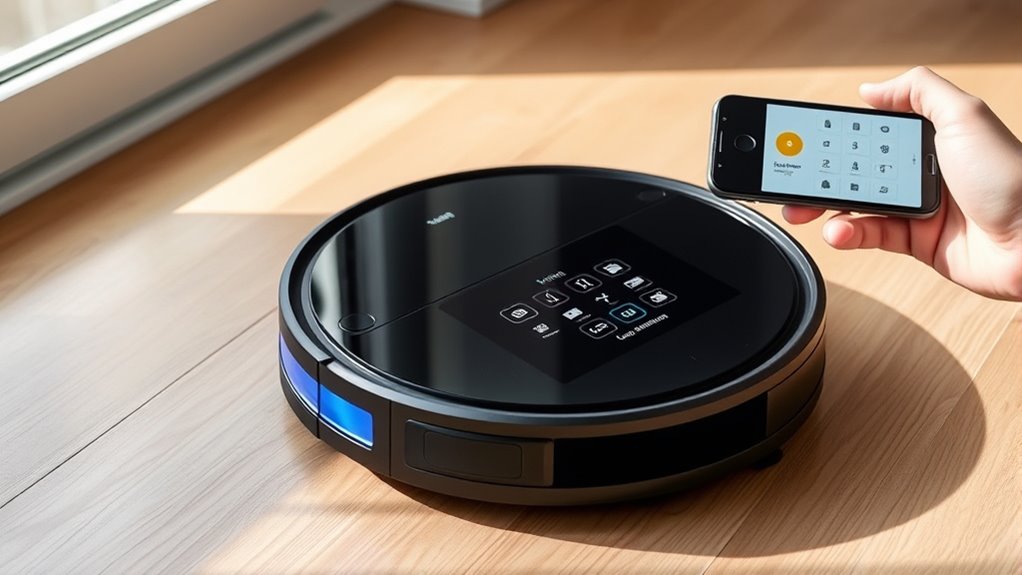
Setting a cleaning schedule for your robot vacuum can make maintaining a tidy home effortless. When you program your device properly, you guarantee it cleans efficiently without you having to micromanage each session. To do this effectively, you need to understand how your robot steers through your space. Modern models use advanced mapping algorithms to create a virtual map of your home, allowing them to plan optimal cleaning routes. These algorithms help your vacuum recognize rooms, furniture, and obstacles, so it doesn’t waste time retracing the same paths or missing spots. By setting a schedule that aligns with these mapping capabilities, you guarantee each area gets cleaned regularly, and your device works smarter, not harder.
Obstacle detection plays a crucial role in how your robot vacuum performs during scheduled cleanings. Equipped with sensors, obstacle detection allows your vacuum to identify objects in its path—like furniture, shoes, or pet toys—and steer around them without incident. This prevents collisions that could damage your furniture or cause your vacuum to get stuck. When creating a cleaning timetable, it’s helpful to think about how your vacuum’s obstacle detection functions. For example, if your device is sensitive to certain objects, you might want to clear clutter in high-traffic areas before scheduled runs. Doing so guarantees the vacuum can operate smoothly, covering more ground without interruptions or the need for manual intervention.
To maximize efficiency, think about setting your schedule during times when your home is less crowded. Early mornings or late evenings often work well, especially if your robot uses mapping algorithms that learn your layout over time. As it repeats cleaning sessions, it will become more effective at steering through your space with fewer hiccups. Combining this with regular maintenance—like clearing dustbins, cleaning sensors, and ensuring obstacle detection sensors are unobstructed—keeps your robot running at peak performance. If your model allows, customize cleaning zones or restrict access to certain areas, which can be especially useful if you want to avoid pet feeding stations or delicate decorations.
Frequently Asked Questions
Can I Override the Schedule Manually When Needed?
Yes, you can manually override the schedule whenever needed, especially for emergency cleaning. Most robot vacuums allow you to do a manual override by pressing a button or using the app to start a quick clean. This feature is handy if you want to clean a specific area outside your regular schedule or if you need an emergency cleaning session. Just activate the manual override, and your vacuum will start immediately.
How Do I Reset or Change the Existing Schedule?
When it comes to resetting or changing your robot vacuum’s schedule, you’re in the driver’s seat. To do a manual reset, access the app or control panel, then select schedule customization. From there, you can delete or modify existing times, ensuring your vacuum cleans when it suits you best. Think of it as hitting the reset button, giving you full control over your cleaning routine.
What’s the Maximum Number of Schedules I Can Set?
You can set up to seven schedules on most robot vacuums, offering good scheduling flexibility. This allows you to customize cleaning times for different days and times, ensuring your home stays tidy without manual prompts. Keep in mind, schedule limitations vary by model, so check your device’s manual for exact details. Maximize efficiency by spreading out your schedules throughout the week to maintain a consistent cleaning routine.
Does Scheduling Affect Battery Life and Cleaning Performance?
Scheduling your robot vacuum can impact battery conservation and cleaning consistency. When you set regular schedules, it helps optimize battery use by preventing unnecessary runs, extending its lifespan. Consistent scheduling ensures your floors stay clean without gaps, maintaining cleaning performance. However, frequent scheduling changes or overly tight routines might drain the battery faster or disrupt cleaning. Find a balance that suits your home’s needs to maximize efficiency and keep your floors spotless.
Can I Create Different Schedules for Specific Rooms?
You can definitely create different schedules for specific rooms, turning a cluttered space into a spotless sanctuary. By setting customized schedules, you optimize room-specific cleaning, ensuring high-traffic areas get attention when needed most. This tailored approach maximizes efficiency, conserves battery life, and keeps your home consistently clean. Use your robot vacuum’s app to assign specific times and zones, making your cleaning routine smarter and more personalized.
Conclusion
By programming your robot vacuum for ideal times, you’ll save effort and keep your home consistently clean. Some might think scheduling is complicated, but once you get the hang of it, it’s a breeze. Don’t worry about missing spots—set your schedule to target high-traffic areas or times when you’re out. With a little planning, you’ll enjoy a spotless home without lifting a finger, making your cleaning routine smarter and more efficient.