
When your robot mop beeps or shows alerts, it usually signals issues with the battery, sensors, software, or physical components. Check if the battery is properly seated and charged, as low power often causes errors. Clean or realign sensors to fix navigation troubles. Software glitches can trigger alerts, so updating firmware or performing a reset can help. Ensuring water tanks and pads are correctly installed also prevents malfunctions. Staying attentive to these signals can keep your robot running smoothly—there’s more to discover if you look closer.

Get home appliances delivered free — and shop member deals
- Fast, free delivery on millions of items
- Access to Prime Big Deal Days deals on October 6–7
- Prime Video, Amazon Music and more included
Key Takeaways
- Error beeps and alerts often indicate low battery, connection issues, or sensor misalignment needing inspection.
- Cleaning sensors and ensuring components are properly seated can resolve many navigation or blockage alerts.
- Firmware updates and resets help fix software glitches causing unexpected error signals.
- Properly charging and securing the battery prevents mid-clean stoppages and related error messages.
- Regular maintenance of sensors, water tanks, and pads reduces false alarms and ensures smooth operation.
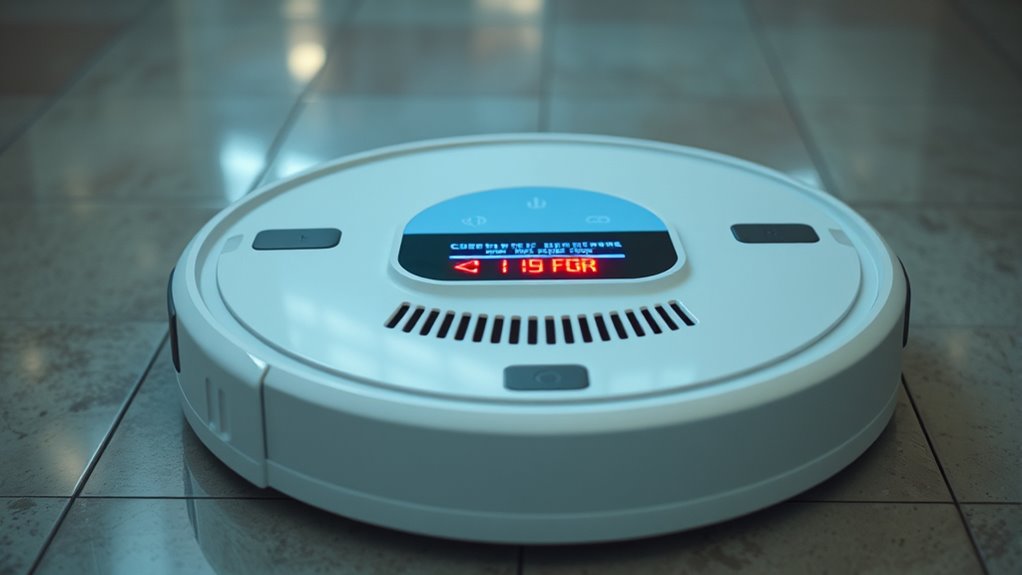
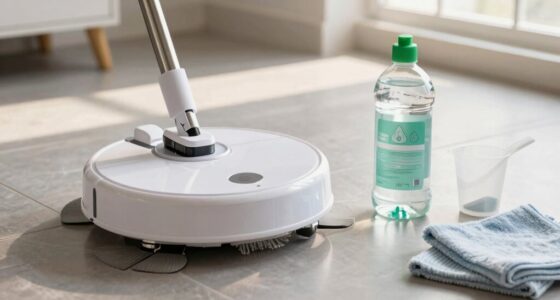
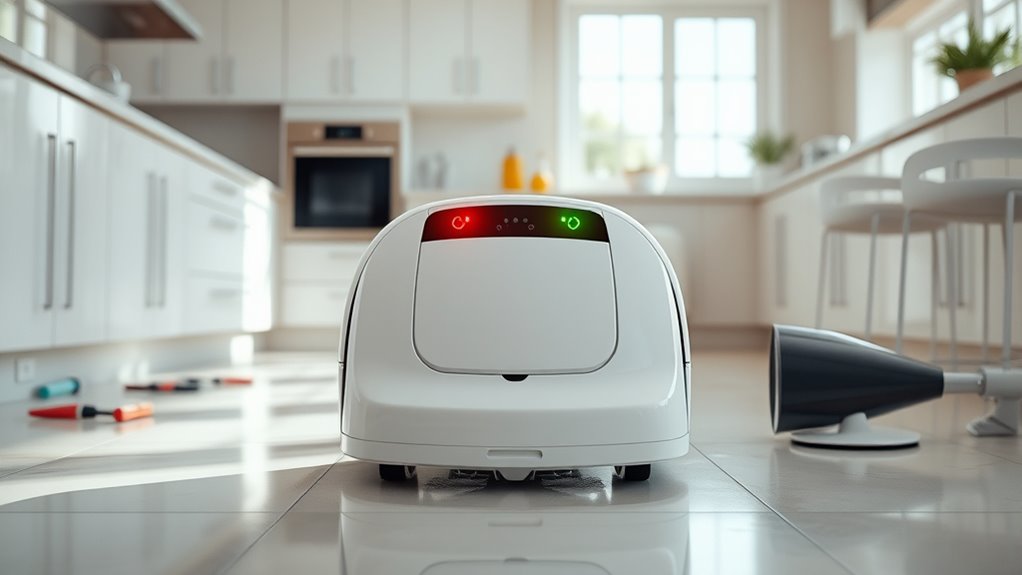
When your robot mop displays an error message, it can be frustrating trying to figure out what went wrong. These alerts are designed to catch your attention and prompt troubleshooting, but they often leave you wondering what specific issue needs fixing. One common reason for error messages involves the device’s battery indicators. If the battery level is low or the connection between the battery and the robot is compromised, the mop may beep or show a warning light. In such cases, the solution is usually simple: recharge the battery or ensure it’s properly seated. Ignoring these signals might cause the robot to stop mid-clean or refuse to start altogether, so addressing the battery indicator alerts promptly can save you time and frustration. Additionally, many modern robot mops incorporate advanced sensors that help them navigate effectively; if these sensors are dirty or misaligned, they can trigger error alerts that need attention. Another frequent cause of error messages relates to software glitches. Sometimes, the robot’s internal software encounters a hiccup, causing unexpected beeps, blinking lights, or error codes. These glitches can occur after firmware updates or if the robot experiences a power surge or temporary malfunction. When faced with a software glitch, performing a reset often clears the error. This might involve turning the robot off, removing the battery if possible, or pressing a reset button if your model has one. If the issue persists, updating the robot’s firmware through the manufacturer’s app can often fix bugs and improve performance. Keeping the software current reduces the chances of these glitches disrupting your cleaning routine. Beyond battery and software issues, be aware that some error messages are linked to physical blockages or sensor problems. For example, if the sensors that detect obstacles or stairs are dirty or misaligned, the robot might beep to alert you. Cleaning the sensors gently with a soft cloth can resolve these issues. Similarly, if the mop’s water tank isn’t properly seated or the cleaning pads are not attached correctly, the device may display an alert or stop working. Always double-check these components before assuming a technical fault.
As an affiliate, we earn on qualifying purchases.
Frequently Asked Questions
How Can I Reset My Robot Mop After an Error?
To reset your robot mop after an error, first interpret the error code by checking the user manual or app for specific details. Then, perform a quick maintenance checklist—clean any blocked sensors, empty the water tank, and ensure the brushes are free of debris. Once completed, press and hold the reset button or power cycle the device to clear the error and restart it. This helps resolve issues efficiently and keeps your robot in top shape.
What Do Different Beep Patterns Indicate?
Different error patterns and beep sequences on your robot mop signal specific issues. A single short beep usually indicates a minor problem, like a low battery, while a series of rapid beeps might point to a stuck brush or obstacle. Pay attention to the pattern and count of beeps, as they help you identify the exact error. Refer to your user manual to decode these beep sequences and take appropriate action.
Are There Troubleshooting Steps for Persistent Error Messages?
When your robot mop’s error message feels like a stubborn storm, don’t give up. You should follow a troubleshooting checklist to interpret the error message accurately. First, check for obstructions or dirt in the sensors. Then, reset the device and ensure all parts are securely in place. If problems persist, consult the user manual or contact support. Staying calm and methodical turns chaos into clarity.
Can I Disable Alert Sounds on My Robot Mop?
Yes, you can disable alert sounds on your robot mop. Check your device’s sound settings or app for alert customization options. Many models let you toggle sound notifications on or off, giving you control over alert sounds. Navigate to the settings menu, find sound or alert preferences, and disable or adjust the alert sounds to suit your preferences. This way, you can enjoy a quieter cleaning experience.
How Do I Prevent Future Errors During Cleaning?
Did you know that regular maintenance can reduce robot mop errors by up to 30%? To prevent future errors during cleaning, stick to consistent cleaning routines and perform routine maintenance. Check for obstructions, clean sensors, and replace worn brushes or filters. Follow the manufacturer’s maintenance tips, like emptying the water tank and clearing debris, to keep your robot working smoothly and minimize unexpected alerts.
As an affiliate, we earn on qualifying purchases.
Conclusion
Understanding your robot mop’s error messages helps you troubleshoot quickly and keep it running smoothly. Did you know that over 60% of users have resolved issues on their own by just referencing the error codes? By familiarizing yourself with the beeps and alerts, you save time and avoid unnecessary repairs. So, next time your robot signals a problem, remember—you’re more capable than you think and can get it back to cleaning in no time!
As an affiliate, we earn on qualifying purchases.
As an affiliate, we earn on qualifying purchases.
Fall yard work Picks
leaf blowers
As an affiliate, we earn on qualifying purchases.