Set up a Halloween lighting scene that turns on at the right time, creates the mood you want, and switches off when the evening ends. This guide is for beginners with a Wi-Fi smart home system or app-controlled bulbs and plugs. You will map the lights, check that each product suits its location, connect the devices, create a schedule, and test the scene. Allow 45-90 minutes, plus extra time if you need to troubleshoot Wi-Fi coverage or install outdoor-rated equipment.

Get home appliances delivered free — and shop member deals
- Fast, free delivery on millions of items
- Access to Prime Big Deal Days deals on October 6–7
- Prime Video, Amazon Music and more included

HCMTGW 500FT Permanent Outdoor RGB+IC Eave Lights, IP67 Waterproof App & Voice Controlled Addressable LED
- ✔ Length: 500 ft
- ✔ Light type: RGB+IC addressable LED
- ✔ Control: App and voice control
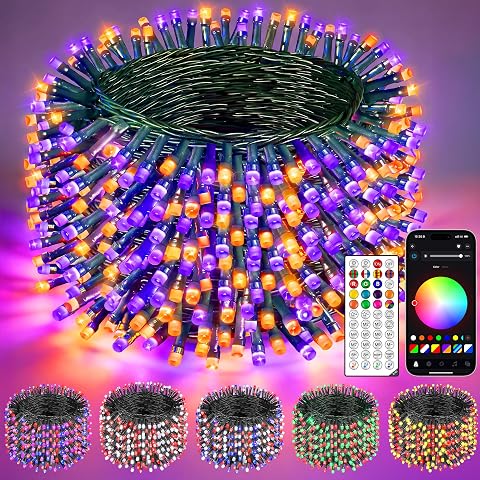
Guhope Smart Color Changing Halloween/Christmas Lights, 132FT 400 LED RGBW String Lights
- ✔ Length: 132 ft
- ✔ LED count: 400
- ✔ LED type: RGBW

Smart Color Changing LED String Lights, 66FT 200 LED RGB with Remote & App Control, Music Sync, Waterproof Indoor Outdoor Holiday…
- ✔ Length: 66 ft
- ✔ LED count: 200
- ✔ Light color: RGB color changing
Difficulty: Beginner | Time: 45-90 minutes
What You’ll Need
Tools & Materials:
- Smart bulbs, LED light strips, or smart plugs compatible with your home system
- Phone or tablet with the manufacturer’s smart home app installed
- Working Wi-Fi connection and the network password
- Lamps or fixtures that fit the selected bulbs
- Outdoor-rated extension cords and weather-resistant covers if needed outside
- Optional: voice assistant, motion sensor, or smart button
Knowledge:
- Basic use of a smartphone app
- How to switch off a light or unplug a device safely
- Your home Wi-Fi name and password
Check each device’s package or product information for indoor or outdoor use, supported voltage, maximum load, and network requirements. A smart plug does not make an indoor decoration safe to use outdoors. Keep electrical connections away from rain, wet leaves, walkways, and places where visitors may trip. Use LED decorations where possible because they produce less heat than many older bulbs.
HCMTGW 500FT Permanent Outdoor RGB+IC Eave Lights, IP67 Waterproof App & Voice Controlled Addressable LED
For Halloween lighting that starts at the eaves and returns every year, HCMTGW’s 500-foot permanent system is the strongest fit in this lineup. Screw-mounted tracks are designed to remain in place, so we can build a seasonal roofline scene without draping and removing string lights each fall. App and voice control, DIY programmable chasing effects, music sync, and sunset-to-sunrise automation make the system more adaptable than a basic timed string. Its IP67 weatherproofing also gives it the clearest stated outdoor protection of these three options.Compared with Guhope’s 132-foot string, HCMTGW is aimed at fixed architectural lighting rather than a display we move between a tree, railing, and fence. It also avoids a stated hub or subscription requirement, though that does not tell us every detail about its app or voice compatibility. The tradeoff is the installation: screw-mounted tracks take planning and leave a lasting footprint. Its listed power source is battery powered, a detail buyers should reconcile with the installation instructions before planning a 500-foot run. The 90-day warranty is notably limited for a system intended to stay outdoors year-round, so this is our top pick only when permanence and roofline coverage outweigh easy setup and long-term warranty reassurance.
Pros:
- Permanent tracks reduce repeated seasonal setup and takedown.
- IP67 weatherproofing is the strongest specified outdoor rating here.
- App and voice control support DIY scenes, music sync, and scheduled automation.
- No hub or subscription is required, according to the supplied description.
Cons:
- Screw-mount installation takes more commitment than hanging string lights.
- The listed 90-day manufacturer warranty is short for a permanent outdoor system.
- Battery-powered listing merits checking against the full installation and power requirements.
Best for: Homeowners planning a fixed, programmable roofline or eave display that can serve Halloween and other seasons.
Not ideal for: Renters, decorators who regularly move lights between locations, or anyone unwilling to commit to screw-mounted tracks and check power details before installation.
Bottom line: Choose HCMTGW when fixed roofline coverage and automation matter more than simple seasonal installation or a longer stated warranty.
“Choose HCMTGW when fixed roofline coverage and automation matter more than simple seasonal installation or a longer stated warranty.”
Guhope Smart Color Changing Halloween/Christmas Lights, 132FT 400 LED RGBW String Lights
Guhope’s 132-foot run and 400 RGBW LEDs make it the natural choice when Halloween decor needs to stretch across a larger tree, fence, or porch arrangement. Unlike HCMTGW’s roofline tracks, these are seasonal string lights that we can redirect as the display changes. RGBW adds a dedicated white option alongside color effects, which can make the set useful beyond Halloween when we want a less saturated look. Button, remote, and app controls give us more than one way to adjust the display.That control mix also distinguishes Guhope from the 66-foot Bluetooth set: it doubles the listed length and adds RGBW, while keeping a remote and physical button available. Music sync and timers support party scenes and scheduled use, but the supplied details do not state an outdoor IP rating or power-source specification. We should confirm weather suitability and outlet needs before placing it in an exposed area. Group control works only within the app, and iOS music sync requires extra steps through iTunes or a PC import. Those are manageable limits for a large seasonal display, but they make Guhope less straightforward for buyers who want effortless phone syncing or clearly documented permanent outdoor protection.
Pros:
- 132-foot length and 400 LEDs suit larger seasonal layouts.
- RGBW includes a dedicated white option as well as color.
- Button, remote, and app control provide useful alternatives.
- Music sync, timers, and app group control support varied scenes.
Cons:
- No outdoor IP rating or power-source detail is included in the supplied specifications.
- iOS music sync requires an extra import process.
- Group control is limited to the app.
Best for: Decorators who want a long, repositionable run for larger seasonal displays and value a true white mode plus multiple control methods.
Not ideal for: Buyers needing a stated outdoor weather rating, effortless iOS music syncing, or group control beyond the app.
Bottom line: Pick Guhope for broad, movable Halloween coverage when its unspecified weather rating and app-centered group control fit your setup.
“Pick Guhope for broad, movable Halloween coverage when its unspecified weather rating and app-centered group control fit your setup.”
Smart Color Changing LED String Lights, 66FT 200 LED RGB with Remote & App Control, Music Sync, Waterproof Indoor Outdoor Holiday…
For a porch railing, compact tree, or party corner, the 66-foot, 200-LED string set offers a more contained way into app-controlled Halloween color. It pairs a Bluetooth app with a handheld remote, so we can still change modes without using a phone. More than 100 modes, music sync with adjustable sound sensitivity, and a 4/6/8-hour timer cover the most immediate seasonal jobs: choose a color effect, match a gathering’s energy, and have the lights switch off on schedule. The UL-listed 29V low-voltage plug is a concrete power detail that the supplied Guhope specifications do not provide.Compared with Guhope, this set has half the listed length and fewer LEDs, making it a better match for focused accents than sprawling yard coverage. Its IP44 rating is specified for indoor and outdoor use, but HCMTGW’s IP67 rating indicates a system positioned for more demanding exposure. A corded outlet also restricts where we can hang it, and Bluetooth-based app control is less suited to managing lights from farther away. Choose it for a smaller, outlet-accessible display or a Halloween gathering where music sync matters; skip it if you need permanent roofline coverage or a long run across the yard.
Pros:
- Remote and Bluetooth app offer two control methods.
- More than 100 modes, music sync, and timer support party and seasonal use.
- IP44 rating is specified for indoor and outdoor use.
- UL-listed 29V low-voltage plug provides a defined power setup.
Cons:
- A corded outlet limits placement flexibility.
- Bluetooth app control depends on nearby connectivity.
- At 66 feet, it covers less area than the Guhope and HCMTGW options.
Best for: Shoppers decorating a modest, outlet-accessible area or adding music-synced color to an indoor or outdoor Halloween gathering.
Not ideal for: Anyone seeking permanent roofline installation, broad yard coverage, or app control that does not depend on Bluetooth range.
Bottom line: Choose this set for a smaller, plug-in Halloween scene where a remote and music sync matter more than extensive coverage.
“Choose this set for a smaller, plug-in Halloween scene where a remote and music sync matter more than extensive coverage.”
As an Amazon Associate we earn from qualifying purchases.
Before You Start
Choose a simple plan before pairing devices. Decide which areas should glow, which lights should flash or change color, and when the scene should start and stop. Check that you can reach every switch and plug without climbing over decorations. For outdoor equipment, use products specifically rated for outdoor conditions and connect them to a ground-fault circuit interrupter (GFCI) protected outlet. Follow the manufacturer’s instructions for the outlet, plug covers, and cords.
Check whether your smart devices require a 2.4 GHz Wi-Fi network, a hub, or a specific app. Some devices cannot join a network while a phone is connected to a 5 GHz-only network. Keep the device’s instructions nearby during setup. Do not overload a plug, power strip, or circuit; compare the connected equipment’s power draw with its rated limit.
Step-by-Step Instructions
Step 1: Map the lighting areas
Walk through the rooms and outdoor areas you want to decorate. Write down each light, its location, and how you want to control it. For example, list a purple porch bulb for dusk, a steady orange window light for the evening, and a low indoor lamp for the hallway. Mark which lights need color changes, a schedule, or a motion response.
Group lights that should act together, such as all porch decorations or all lights around one window. Give each group a clear name, such as “Porch Halloween” or “Window Glow.” A short list helps you choose between smart bulbs and smart plugs: use a bulb when you need color or dimming, and a plug when you only need on and off control for a compatible lamp or decoration.
Tip: A smart plug usually cannot change a lamp’s color or brightness. Confirm that the device plugged into it returns to the desired state after power is restored.
Check: You have a device list with a location, intended effect, and control method for each light.
Step 2: Check product and outlet compatibility
Read the device labels and instructions before installing anything. Match bulb shape and base to each fixture, and check that the fixture allows the bulb type and wattage. For a smart plug, check its rated load against the lamp or decoration. Confirm that outdoor devices and cords are explicitly rated for outdoor use if they will be exposed to weather.
Inspect each cord, plug, bulb, and decoration for cracks, fraying, loose connections, or damaged insulation. Set aside damaged items. Find a suitable outlet for each device and check that the route will not cross a doorway, stair, or visitor path. Keep connections elevated or protected from standing water, following the product instructions.
Tip: Do not put a smart plug inside a closed, damp, or unventilated enclosure unless its instructions allow that use.
Check: Each planned device fits its fixture or load, suits its location, and has a safe outlet and cord route.
Step 3: Install the bulbs and plugs
Switch off the lamp or fixture before replacing a bulb. Let a recently used bulb cool, remove it, and install the smart bulb according to its instructions. Restore power at the wall switch and leave that switch on so the app can control the bulb. For a smart plug, plug it directly into an appropriate outlet, then connect the lamp or decoration to the smart plug.
Place each device where its wireless signal can reach the home network or hub. Avoid hiding a smart plug behind metal objects or inside a crowded cabinet. Keep outdoor plugs and connectors in the positions and protective covers described by their manufacturers. Do not connect several extension cords end to end unless their instructions permit it.
Tip: Leave the physical wall switch for a smart bulb on during normal use. Turning it off cuts power and makes app or voice control unavailable.
Check: Each installed device powers on normally, with cords clear of walkways and outdoor connections protected as directed.
Step 4: Pair devices with the app
Open the manufacturer’s app and follow its add-device instructions. Put the bulb or plug into pairing mode using the documented method, then select the matching product in the app. Connect it to the required Wi-Fi network or hub. If prompted, allow the app to use Bluetooth or location access for setup, then review the app’s privacy settings afterward.
Rename each device using its location and purpose. Add the devices to the rooms or groups you created in your plan. Test the on and off controls from the app before adding more devices. If a device fails to pair, move your phone and the device closer to the router or hub and check that the network band and password match the manufacturer’s requirements.
Tip: Pair one device at a time. This makes it easier to tell which bulb or plug is having trouble.
Check: Every device appears in the app under a recognizable name and responds to an on or off command.
Step 5: Set colors, brightness, and effects
Choose a scene that suits the area and keeps paths and steps easy to see. Set color bulbs to orange, purple, or another preferred shade, then adjust brightness from the app. Use steady light near stairs, entrances, and walkways. If you use a flicker or color-changing effect, confine it to decorations away from areas where visitors need clear footing.
Save the chosen settings as a scene or preset if the app supports it. Give the scene a name you can recognize, such as “Halloween Evening.” Test the scene from the app and check the result from the street or doorway. Reduce brightness or change the angle if the light shines into a neighbor’s windows or makes the entrance hard to see.
Tip: Check flashing effects with household members and visitors in mind. Use a steady setting if rapid changes could bother someone.
Check: The selected scene is saved, visible from the intended viewing area, and leaves entry routes clear to see.
Step 6: Create an on and off schedule
Open the app’s schedule, routine, or automation feature. Choose the Halloween scene or the group of devices, set a start time such as local sunset or a fixed evening time, and set an end time. Use the correct days and time zone. If your system offers a sunset offset, choose a small offset and check the displayed next run time.
For a motion sensor or voice assistant, add that control only after the basic schedule works. Set motion lighting to a short duration and aim the sensor at the intended approach rather than a busy street or neighboring property. Add a manual app or button control so you can switch the lights off without editing the schedule.
Tip: Check for conflicting routines that control the same device. A second automation may turn the lights off soon after the Halloween schedule turns them on.
Check: The app displays the intended start and stop times, active days, and the correct devices or scene.
Step 7: Test the complete setup
Run the scene manually once, then switch it off. Confirm that every bulb, plug, and decoration responds. Test the schedule by temporarily setting a start time a few minutes ahead, or use the app’s test option if available. Watch the devices at the scheduled time, then restore the real schedule.
Check the outdoor setup after dark from the entrance and the sidewalk. Confirm that the house number, steps, and walking route remain visible and that no cord or decoration creates a trip hazard. If you use a motion sensor, walk through its detection area and confirm that it responds only where intended. Leave the system in the state you want for the next scheduled run.
Tip: Keep a manual switch or app control available in case the network or automation stops responding during the evening.
Check: The full scene turns on and off as scheduled, each device responds, and visitors can see a clear route to the entrance.
Common Mistakes to Avoid
- Using an indoor plug, bulb, or extension cord outdoors. — Check the product rating before installation. Use outdoor-rated equipment and follow its instructions for covers, placement, and weather exposure.
- Switching off power to a smart bulb at the wall. — Leave the wall switch on after installing the bulb. Use the app, voice assistant, or compatible smart switch for everyday control.
- Scheduling multiple routines for the same lights. — Review automations that already control the devices. Remove or adjust conflicting schedules, then test the Halloween routine.
- Placing cords or dark decorations across the entrance route. — Route cords along walls and away from steps. Keep a steady light on walkways and check the setup from a visitor’s approach.
Troubleshooting
Problem: A bulb or plug will not pair with the app.
Solution: Confirm pairing mode, Wi-Fi password, and any required 2.4 GHz network or hub. Move the device closer to the router or hub and retry the manufacturer’s setup steps.
Problem: A device appears offline or responds slowly.
Solution: Check that the device still has power and that the wall switch is on. Improve its signal by moving it closer to the router or hub, then restart the device according to its instructions.
Problem: The schedule runs at the wrong time or does not run.
Solution: Check the app’s time zone, active days, location permissions for sunset schedules, and the routine’s selected devices. Look for another automation that overrides the same lights.
Problem: A smart plug turns on, but the decoration stays dark.
Solution: Check the decoration’s own switch and confirm that it resumes operation when power returns. Test the decoration directly in a working outlet; replace damaged equipment rather than continuing to use it.
What Success Looks Like
Your Halloween lighting is complete when every planned device appears in the app, the scene produces the intended colors and brightness, and the schedule switches the correct lights on and off at the selected times. Outdoor products and connections suit their locations, cords do not cross visitor paths, and the entrance and steps remain visible. A manual control is available if you need to change the scene.
Next Steps
After Halloween, remove temporary outdoor decorations and store bulbs, plugs, and cords according to their instructions. Delete or disable seasonal schedules so they do not run unexpectedly. Inspect reusable equipment before packing it away, and replace damaged items before the next use. If you keep the smart bulbs installed, rename or regroup them for everyday lighting.
Frequently Asked Questions
Can I use a regular lamp with a smart plug?
Usually, if the lamp and bulb are compatible with the plug’s rated load. The plug controls power on and off; it generally does not control dimming or color. Check whether the lamp returns to an on state when the plug restores power.
Do I need a hub for Halloween lights?
It depends on the device. Some smart bulbs and plugs connect directly to Wi-Fi, while others require a hub or bridge. Check the product instructions before buying and pair the device with its supported app or system.
Can I schedule lights to turn on at sunset?
Yes, if the app supports sunset-based schedules and has the location information it needs. Check the location, time zone, and any offset setting, then test the next run time shown in the app.
How can I make smart Halloween lighting safer for visitors?
Keep steps and walkways lit steadily, route cords away from paths, and secure decorations so they cannot fall or blow into the entrance. Use outdoor-rated electrical products outside and follow their installation instructions.
What should I do if the Wi-Fi goes out?
Use the device’s physical switch or any local control the manufacturer supports. Some schedules continue without internet, while others depend on cloud access. Check the product instructions and keep a safe manual lighting option available.
Fall Picks
fall essentials
As an affiliate, we earn on qualifying purchases.