Your Roomba uses blinking lights and beeps to tell you what’s wrong. A flashing yellow light usually means a wheel or obstacle problem, while a red light points to a full dustbin or sensor issue. Beep sequences add extra clues. Checking for blockages, cleaning sensors, or resetting the unit can often fix the error. If issues persist, exploring detailed error codes will help you troubleshoot more effectively. Keep going to uncover more tips for quick repairs.

Get home appliances delivered free — and shop member deals
- Fast, free delivery on millions of items
- Access to Prime Big Deal Days deals on October 6–7
- Prime Video, Amazon Music and more included
Key Takeaways
- Blinking yellow lights often indicate wheel obstructions or obstacle detection issues.
- Red lights typically signal full dustbins, sensor errors, or serious malfunctions requiring prompt attention.
- Beeping patterns provide additional clues for diagnosing specific problems with your Roomba.
- Resetting the device or clearing blockages can resolve many common error signals.
- Regular maintenance of brushes, sensors, and contacts helps prevent recurring error codes.
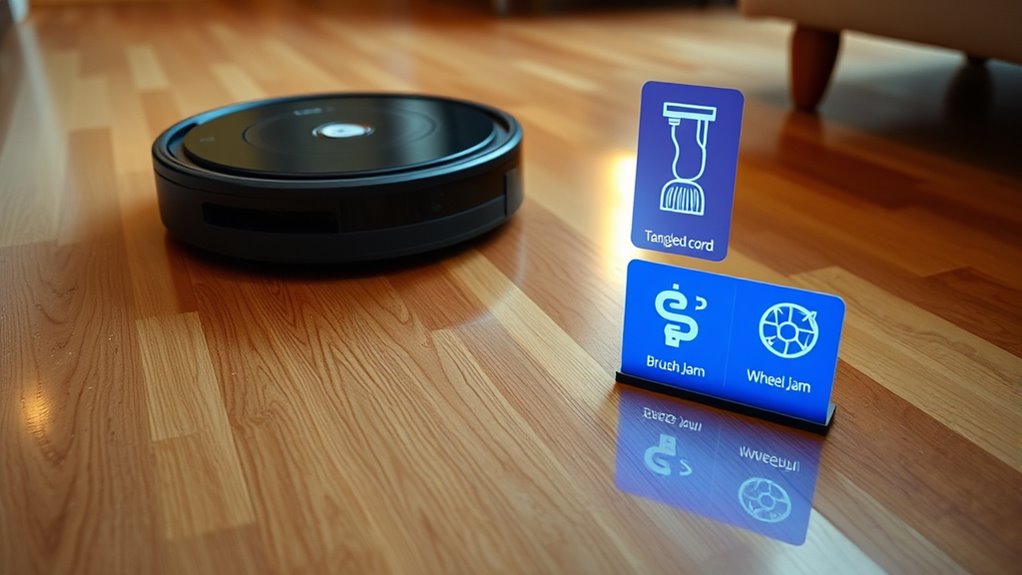
Have you ever wondered what those blinking lights or beeping sounds from your Roomba mean? When your robot vacuum starts acting up, it can be frustrating trying to figure out what’s wrong. Fortunately, Roomba’s error codes are designed to give you clues about the issue, so you can address it quickly. Understanding these signals is key to maintaining your device and preventing future problems. To do that effectively, you need to follow some simple maintenance tips and troubleshooting steps.
Learn what Roomba’s blinking lights and beeps mean to troubleshoot quickly and keep your device running smoothly.
First, pay close attention to the specific error signals your Roomba displays. Many models use a combination of blinking lights or a series of beeps to indicate different issues. For example, a flashing yellow light might point to a wheel obstruction, while a red light could signal a more serious problem like a full bin or a sensor issue. Once you identify the pattern, you can start troubleshooting. A good starting point is to check for obvious blockages or debris around the wheels, brushes, and sensors. Clearing out hair, dirt, and obstacles can often resolve simple errors. Regularly cleaning the brushes and replacing worn parts also helps prevent many common problems, saving you time and frustration.
If the error persists, consult your Roomba’s user manual or manufacturer’s support resources for specific troubleshooting steps tailored to your model. Many issues stem from simple causes like a clogged filter, a full dustbin, or a dirty sensor. Emptying the bin, replacing filters, or cleaning the sensors often clears the error. Sometimes, a restart can fix temporary glitches—simply turn off your Roomba, wait a few seconds, and turn it back on. If you’re still seeing error signals, double-check the charging contacts and dock to ensure proper power connection, since power issues can sometimes mimic error codes. Additionally, software updates can fix bugs and improve device performance.
It’s also helpful to keep your Roomba well-maintained to prevent errors from occurring in the first place. Regularly inspecting and cleaning the brushes, filters, and sensors is essential. Make sure the wheels rotate freely and aren’t obstructed. Keep the charging contacts clean, and ensure the robot’s software is up to date, as firmware updates can fix bugs and improve performance. When you follow these maintenance tips and troubleshooting steps, you’ll keep your Roomba running smoothly and reduce the chances of encountering error codes.
In essence, the blinking lights and beeps are your Roomba’s way of communicating with you. Recognizing what they mean and knowing how to respond can save you a lot of time and effort. With a little attention to maintenance and some straightforward troubleshooting steps, you’ll quickly get your robot back to cleaning without interruptions.
Roomba error code troubleshooting kit
As an affiliate, we earn on qualifying purchases.
As an affiliate, we earn on qualifying purchases.
Frequently Asked Questions
How Long Should I Wait Before Resetting My Roomba After an Error?
You should wait at least a few minutes before resetting your Roomba after an error. Giving it some timing patience permits the device to reset its internal systems properly. Typically, a 5-10 minute pause is enough to ensure the reset timing is effective. Rushing the process can cause issues or prevent your Roomba from functioning correctly. Once that time passes, go ahead and perform the reset to clear the error.
Can I Fix All Roomba Error Codes Myself?
You can often fix many Roomba error codes yourself through DIY troubleshooting, like clearing blockages or resetting the device. However, for persistent issues or complex problems, it’s best to seek professional repairs. Don’t risk damaging your Roomba further—know when to try simple fixes and when to rely on experts to keep your vacuum running smoothly and avoid voiding your warranty.
Do Error Codes Affect Roomba’s Warranty Coverage?
Error codes can influence your Roomba’s warranty coverage if they’re caused by user damage or neglect, so warranty implications depend on error code validity. If the error stems from a manufacturer defect, your warranty usually covers repairs. However, if you ignore maintenance or misuse the device, the warranty might be void. Always check your warranty terms and confirm the error code is valid before attempting repairs yourself.
Are There Preventative Measures to Avoid Frequent Error Codes?
To avoid frequent error codes, you should prioritize preventative maintenance and regular inspections. Clean your Roomba’s brushes, filters, and sensors consistently, and check for tangled hair or debris. Keep the wheels free of obstructions, and ensure the battery is charged properly. By staying proactive with these simple steps, you reduce the chances of errors, extend your Roomba’s lifespan, and enjoy smoother, trouble-free cleaning sessions every time.
What Should I Do if My Roomba Shows an Unknown Error Code?
When your Roomba shows an unknown error code, start with error code troubleshooting by consulting your user manual or app for specific guidance. Perform a Roomba reset procedure by turning it off, removing the battery if possible, and then restarting it. This often clears minor glitches. If the error persists, contact customer support for further assistance, as they can help diagnose and resolve more complex issues.
As an affiliate, we earn on qualifying purchases.
Conclusion
Understanding your Roomba’s error codes helps you troubleshoot quickly and keep it running smoothly. Did you know that over 60% of owners report resolving issues faster after learning these codes? By recognizing what your robot is telling you, you save time and avoid costly repairs. Keep this guide handy, and your Roomba will stay in top shape, ensuring your floors stay spotless with minimal fuss. Happy cleaning!
As an affiliate, we earn on qualifying purchases.
As an affiliate, we earn on qualifying purchases.
Fall yard work Picks
leaf blowers
As an affiliate, we earn on qualifying purchases.