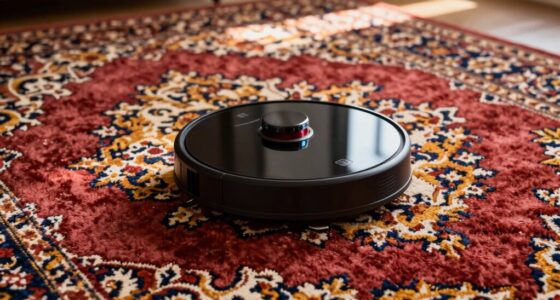
If your Roomba isn’t charging, start by inspecting the battery for damage or swelling and replace it if needed. Verify the charging dock is plugged in, powered, and free of debris, with proper contact alignment between the robot and dock. Clean the contacts with a soft cloth and rubbing alcohol. Reset your Roomba to fix software glitches. If issues persist, further troubleshooting will help you identify more solutions to get your robot back in action.
Open a free Amazon Business account
Business pricing, bulk buying and tax-exempt orders.
As an affiliate, we earn on qualifying purchases.
Key Takeaways
- Check and clean the charging contacts on both the Roomba and dock with rubbing alcohol.
- Ensure the charging dock is plugged into a working outlet and the power indicator is on.
- Confirm the Roomba is properly aligned on the dock with contacts making a good connection.
- Inspect and replace the battery if it shows signs of damage, swelling, or no longer holds a charge.
- Reset the Roomba or perform a factory reset to resolve potential software glitches affecting charging.

Are you frustrated because your Roomba isn’t charging? It’s a common issue, but one that you can often fix with a few simple steps. The first thing to check is whether the problem stems from the battery itself or the charging dock. If your Roomba’s battery has been in use for a long time, it might need a battery replacement. Over time, batteries lose their ability to hold a charge, which means even if your Roomba is plugged in correctly, it may not power up or dock properly. To determine if this is the case, remove the battery and inspect it for signs of damage or swelling. If it looks worn out or old, replacing the battery can restore your Roomba’s charging capability.
Next, make sure your charging dock is functioning correctly. Sometimes, the issue isn’t with the Roomba but with the dock itself. Check that the charging contacts on both the dock and the robot are clean and free of debris or dust. Use a soft cloth and a small amount of rubbing alcohol to wipe the contacts gently. Also, ensure the dock is plugged into a working outlet. Try plugging in another device to confirm the outlet isn’t the problem. If your charging dock has a power indicator light, verify it’s on. If it’s not, unplug and replug it or try a different outlet. Sometimes, the dock’s power supply can fail, and replacing the dock might be necessary if all other checks don’t resolve the issue.
Another common cause for charging problems is misalignment or improper placement on the dock. Make sure your Roomba is correctly positioned on the charging station, with the charging contacts aligning properly. Sometimes, shifting the robot slightly can make a big difference. If you’re still having trouble, consider resetting your Roomba by turning it off and on again or performing a factory reset if available. This can sometimes resolve software glitches that interfere with charging.
Additionally, regular maintenance of the charging contacts and battery can help prevent recurring issues. Finally, if you’ve tried all these steps and your Roomba still won’t charge, it might be time to contact customer support or visit a service center. They can help diagnose hardware issues beyond simple troubleshooting, including internal component failures. Remember, regular maintenance like cleaning contacts and replacing the battery when needed can prolong your Roomba’s lifespan and prevent charging issues from recurring. With a little patience and the right checks, you can often get your Roomba back to cleaning without much hassle.
As an affiliate, we earn on qualifying purchases.
Frequently Asked Questions
Can I Use a Different Charger for My Roomba?
You shouldn’t use a different charger for your Roomba without checking charger compatibility first. Using an incompatible charger can damage the battery or the robot itself. If your Roomba’s battery needs a replacement, ensure you buy a compatible model recommended by the manufacturer. This way, you’ll keep your device safe and maintain ideal performance. Always follow the manufacturer’s guidelines for charger and battery replacements to avoid potential issues.
How Often Should I Clean Roomba’s Charging Contacts?
You should clean your Roomba’s charging contacts at least once a month to ensure proper charging. Regularly cleaning the contacts, along with the brushes and performing battery maintenance, helps maintain peak performance. Use a soft cloth or a small brush to gently remove dirt or debris from the contacts. This prevents charging issues and keeps your Roomba running smoothly, saving you time and effort in the long run.
Is It Normal for Roomba to Take Longer to Charge?
It’s normal for your Roomba to take longer to charge as its battery lifespan decreases. When the charging indicator shows a slow or prolonged charge, it signals the battery is aging. Instead of feeling frustrated, realize this is part of the natural wear and tear. To keep your robot running smoothly, monitor the charging times and consider replacing the battery when it no longer holds a full charge efficiently.
What Should I Do if the Charging Dock Isn’t Recognized?
If your charging dock isn’t acknowledged, first check the charging port on your Roomba for dirt or debris and clean it gently. Make sure the dock is plugged securely into a power outlet and that the outlet works by testing it with another device. Also, verify the connection between the dock and the power source. If issues persist, try resetting the dock or replacing the power cord to guarantee proper recognition.
Can Software Updates Affect Roomba’s Charging Performance?
Did you know that over 60% of device issues stem from outdated firmware? Software updates can indeed affect your Roomba’s charging performance. Firmware upgrades fix bugs and improve functionality, but sometimes software bugs from recent updates can cause charging problems. To avoid this, always verify your Roomba’s firmware is current and properly installed. Regular updates help optimize charging, so keep your device’s software up-to-date for smooth operation.
As an affiliate, we earn on qualifying purchases.
Conclusion
When your Roomba isn’t charging, you can check the power source, clean the contacts, and reset the device. When you verify the charger works, the contacts are clean, and the reset is complete, you restore your Roomba’s ability to clean, to function, and to serve. By troubleshooting thoroughly, you prevent issues, promote longevity, and keep your home tidy. With patience and care, you keep your Roomba ready, reliable, and always prepared to help.
As an affiliate, we earn on qualifying purchases.
As an affiliate, we earn on qualifying purchases.
NFL season / tailgating Picks
team gear
As an affiliate, we earn on qualifying purchases.