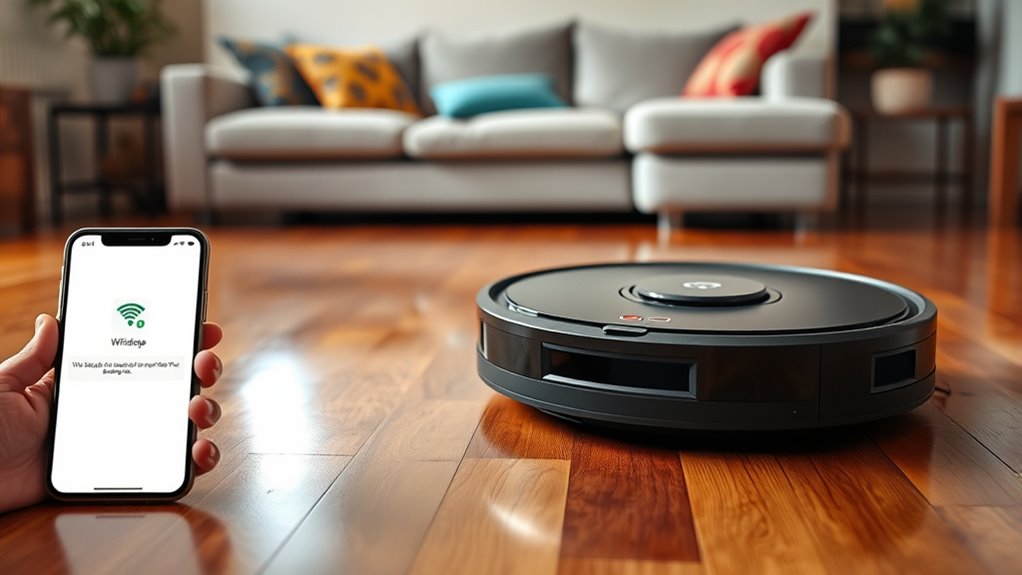
If your Roomba isn’t connecting to WiFi, start by ensuring your WiFi network works well with other devices. Restart your router and move your Roomba closer to it, preferably on a 2.4 GHz band. Double-check that you’re entering the correct WiFi password and that your Roomba supports your network’s frequency. Restart the Roomba and update its firmware if available. Resetting your device and reconfiguring the WiFi often solves connection issues—more tips can help you get your Roomba back online smoothly.
Key Takeaways
- Restart your WiFi router and ensure the network is stable and active.
- Place the Roomba closer to the router and verify it supports the current WiFi band.
- Double-check and re-enter the WiFi password in the Roomba app.
- Restart the Roomba and update its firmware through the app.
- Reset Roomba’s network settings and reconfigure the WiFi connection from scratch.
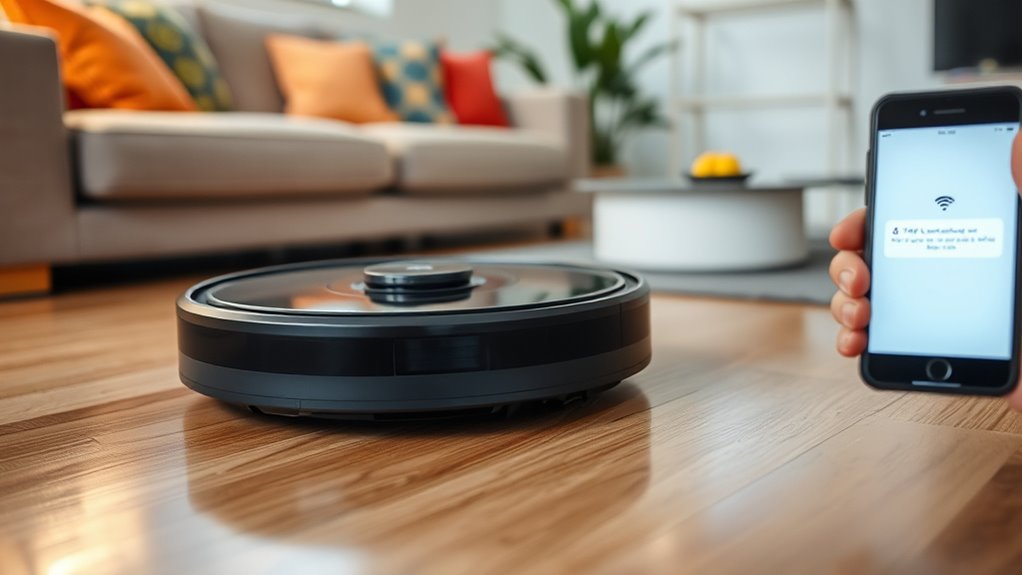
If your Roomba isn’t connecting to WiFi, it can be frustrating, but the fix is often straightforward. A reliable WiFi connection is essential for controlling your robot vacuum remotely, scheduling cleans, and accessing advanced features. When facing WiFi troubles, start with simple WiFi troubleshooting steps to identify and resolve the issue quickly. First, ensure your WiFi network is functioning correctly. Check if other devices, like smartphones or laptops, are connected and working without problems. If they aren’t, restart your router to refresh the network connection. Once the WiFi is stable, focus on your Roomba. Make sure it’s within range of your WiFi signal. Sometimes, placing the robot vacuum too far from the router causes connection issues. Move it closer temporarily to see if that solves the problem.
Ensure your WiFi network works properly and your Roomba is within range for seamless connectivity.
Next, verify that your WiFi network is on a supported band. Many Roomba models work best with 2.4 GHz networks rather than 5 GHz, which can have limited range or compatibility issues. If your router broadcasts both bands, connect your robot vacuum to the 2.4 GHz network. Also, double-check that your WiFi password is correct, especially if you’ve recently changed it. An incorrect password will prevent your Roomba from connecting. Re-enter the password through the app or device setup process to guarantee accuracy.
If your WiFi troubleshooting doesn’t resolve the issue, consider restarting your Roomba. Turn it off, wait a few seconds, then turn it back on. Sometimes, a simple reboot refreshes the device’s network settings. Also, check for firmware updates through the app, as outdated software can cause connectivity problems. Updating your robot vacuum’s firmware can improve its WiFi compatibility and fix bugs.
If issues persist, try resetting your Roomba’s network settings entirely. This process varies by model but generally involves holding specific buttons or using the app to reset network preferences. After resetting, attempt to reconnect your robot vacuum to WiFi from scratch, following the setup instructions carefully. Sometimes, deleting and re-adding your device within the app can also resolve stubborn connectivity problems. Additionally, consider ensuring that your WiFi is operating on the correct frequency band, as some models have limited support for certain bands.
Frequently Asked Questions
Can a Firmware Update Fix Wifi Issues on My Roomba?
Yes, a firmware update can fix WiFi connectivity issues on your Roomba. Updating the firmware often addresses bugs and enhances system stability, which can resolve connection problems. You should check the iRobot Home app for available updates and install them promptly. Keeping your Roomba’s firmware current ensures it stays compatible with your WiFi network and minimizes the chances of ongoing connectivity issues.
Does Router Placement Affect Roomba’s Wifi Connectivity?
Ever wonder if your router’s placement impacts your Roomba’s WiFi? It definitely does. Poor router placement can cause WiFi interference or weaken signal strength, making it harder for your Roomba to stay connected. Keep your router in a central, elevated spot away from thick walls or electronics. By optimizing placement, you’ll improve WiFi stability, ensuring your Roomba connects smoothly and cleans without interruptions.
How Do I Reset My Roomba’s Network Settings?
To reset your Roomba’s network settings, start by opening the iRobot Home app. Select your Roomba, then go to its settings and choose ‘Network Reset’ or similar option. After the reset, perform a device restart by turning your Roomba off and on again. This clears old WiFi info, helping it reconnect smoothly. Make sure your WiFi network is working properly before attempting the reset.
Will Changing My Wifi Password Affect the Connection?
Changing your WiFi password can disrupt your Roomba’s connection, affecting smart home integration and robot cleaning schedules. After updating your password, you’ll need to reconnect your Roomba to the new network. This guarantees it syncs properly with your smart home devices and continues its scheduled cleaning routines. Make sure to update the WiFi credentials in the Roomba app so your robot stays connected and functions seamlessly with your other smart home gadgets.
Is There a Way to Troubleshoot Wifi Problems Without the App?
Yes, you can troubleshoot WiFi problems without the app. First, try a manual reset of your Roomba by pressing and holding the home and dock buttons until it restarts. If that doesn’t work, consider rolling back the firmware to a previous version, which can resolve connectivity issues. These steps help reset your device’s network settings, often fixing WiFi problems without needing the app.
Conclusion
If your Roomba still refuses to connect, don’t despair—sometimes, a quick reset or a fresh WiFi password does the trick. Think of it like repairing the Ark of the Covenant; a little patience and the right steps can save the day. Remember, even the most stubborn devices can be tamed with a bit of troubleshooting. Keep calm and try again—your smart cleaning buddy will be back online faster than you can say “Huzzah!”