If your Shark robot vacuum isn’t working properly, start by checking the battery—replace it if it’s old or not holding a charge. Make sure it’s connected to a strong Wi-Fi signal and that the firmware is up to date. Clean the charging contacts and remove any obstacles that might be blocking its navigation. Reset the device if needed, and keep sensors clean. For more tips on troubleshooting common issues, keep exploring solutions to keep your vacuum running smoothly.
Key Takeaways
- Check and replace the battery if the vacuum fails to turn on or loses power.
- Ensure Wi-Fi signal strength is strong, update firmware, and reconnect the device to resolve connectivity issues.
- Inspect and clean charging contacts and dock to fix charging and docking problems.
- Clear obstacles, clean sensors, and reset the vacuum to improve navigation and prevent getting stuck.
- Perform regular maintenance, update firmware, and contact support for persistent issues or worn parts.
If your Shark robot vacuum isn’t working properly, troubleshooting can quickly get you back on track. One of the first issues you might encounter is the vacuum failing to turn on or operate as expected. Often, this comes down to battery problems. If your device isn’t holding a charge or won’t start at all, consider performing a battery replacement. Over time, batteries degrade and lose their ability to power the vacuum effectively. To replace it, power down the unit, remove the old battery carefully, and insert a compatible replacement. Make sure the new battery is fully charged before testing the vacuum again. This step often resolves power-related issues and restores full functionality.
If your Shark robot vacuum won’t turn on, try replacing the battery to restore power and full functionality.
Another common problem revolves around Wi-Fi connectivity. Your Shark robot relies heavily on a stable Wi-Fi connection to receive commands, update itself, and sync with the app. If your vacuum isn’t responding to commands or isn’t connecting to your network, start by checking your Wi-Fi signal strength. Restart your router and ensure your device is within range. If the connection still isn’t working, try forgetting the network on your device and reconnecting. Sometimes, network settings interfere, so resetting the connection can clear up the problem. Make sure your firmware is up to date, as outdated software can cause connectivity issues. If you’re still experiencing trouble, consider resetting the Wi-Fi settings on the vacuum itself and reconfiguring the connection from scratch. This often fixes minor glitches and helps your device reconnect smoothly.
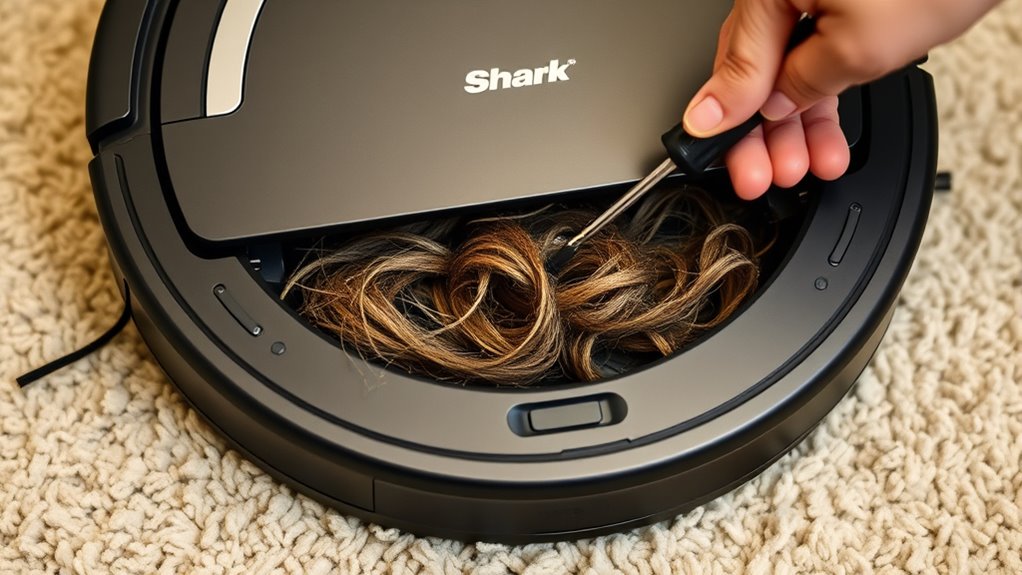
In addition to battery and Wi-Fi issues, other common problems include the vacuum not charging correctly or getting stuck during cleaning. For charging issues, verify the charging dock is plugged in and functioning. Clean the charging contacts on both the dock and the vacuum, as dirt and dust can prevent a proper connection. If the vacuum gets stuck or doesn’t navigate well, check for obstacles or tangled debris around the wheels and brushes. Sometimes, a simple reset can resolve navigation glitches—power off the vacuum, wait a few seconds, then turn it back on. Regular maintenance also helps prevent recurring issues. Keep sensors clean, check for firmware updates, and replace parts as recommended in the user manual. Understanding heat distribution and motor operation can help diagnose why a vacuum might struggle with certain cleaning tasks. If problems persist despite these steps, it might be time to contact Shark customer support or consider professional repairs. Troubleshooting doesn’t have to be complicated; often, a few simple steps can restore your Shark robot vacuum to full working order, ensuring it continues to keep your home clean effortlessly.
Frequently Asked Questions
How Often Should I Replace the Shark Robot Vacuum’s Filters?
You should replace your Shark robot vacuum’s filters every 2 to 3 months, depending on filter lifespan and how often you vacuum. Regularly checking the filters guarantees peak performance. If you notice reduced suction or increased debris, it’s time for a replacement. Following the recommended replacement schedule helps maintain your vacuum’s efficiency and prolongs its lifespan. Keep filters clean between replacements for the best results.
Can I Use the Vacuum on Shaggy or High-Pile Carpets?
Yes, you can use your Shark robot vacuum on shaggy or high-pile carpets, but for the best shaggy carpet cleaning, make certain the brushroll is set correctly and your vacuum has sufficient suction power. High pile vacuuming requires a vacuum designed for deep cleaning; if your model struggles, consider upgrading or adjusting settings. Regularly check for tangled hair or debris to maintain ideal performance on these surfaces.
What Should I Do if the Vacuum’s Battery Doesn’T Hold a Charge?
Battling battery issues? First, follow simple charging tips: verify the vacuum is correctly docked, check for clean contacts, and avoid interruptions during charging. If the battery still doesn’t hold a charge, consider replacing it or contacting customer support for further assistance. Properly maintaining the charger and keeping contacts clean can prevent future problems. Remember, a well-charged battery keeps your vacuum performing perfectly, prolonging its lifespan and saving you time.
How Do I Reset the Shark Robot Vacuum to Factory Settings?
To reset your Shark robot vacuum to factory settings, press and hold the power button for about 10 seconds until the unit turns off. Then, press and hold the power button again for another 10 seconds. This troubleshooting step will perform a factory reset, erasing previous settings. If issues persist, consult the user manual or support for additional troubleshooting steps. Remember, a factory reset often resolves many common problems.
Is It Safe to Use the Vacuum on Hardwood Floors With Spills?
Sure, you can safely sweep spills on hardwood floors with your Shark robot vacuum. Just guarantee spills are dry before vacuuming to prevent slipping or damage. For dry spill cleanup, gently remove excess debris first. Always prioritize hardwood safety by avoiding wet or sticky spills, which could harm your floors or clog the vacuum. Keep your floors pristine and protected by promptly and carefully managing spills before vacuuming.
Conclusion
Now that you’ve tackled those common Shark robot vacuum issues, you’re ready to keep your home spotless without a hitch. Remember, even in the age of smart gadgets, a little troubleshooting can save you from a tech-induced headache—just like fixing a broken dial-up modem in the 90s. Stay patient, follow these tips, and your vacuum will be back to cleaning like a dream. Who knew that a modern marvel could be so easy to keep in check?